User Guide
TutorRec is a desktop app for 1-to-1 primary school home tutors to manage student contacts, optimized for use via a Command Line Interface (CLI) while still having the benefits of a Graphical User Interface (GUI). If you can type fast, TutorRec can get your contact management tasks done faster than traditional GUI apps.
- Quick start
-
Features
- Formatting fields for a person
- Duplicate detection for names and contacts
- Viewing help :
help - Adding a person:
add - Listing all persons :
list - Viewing a person :
view - Editing a person :
edit - Locating persons by name :
find - Deleting a person :
delete - Viewing all appointments :
appointments - Clearing all entries :
clear - Exiting the program :
exit - Saving the data
- Editing the data file
- Archiving data files
[coming in v2.0]
- FAQ
- Known issues
- Command summary
Quick start
-
Ensure you have Java
11or above installed in your Computer. -
Download the latest
tutorrec.jarfrom here. -
Copy the file to the folder you want to use as the home folder for TutorRec.
-
Open a command terminal,
cdinto the folder you put the jar file in, and use thejava -jar tutorrec.jarcommand to run the application.
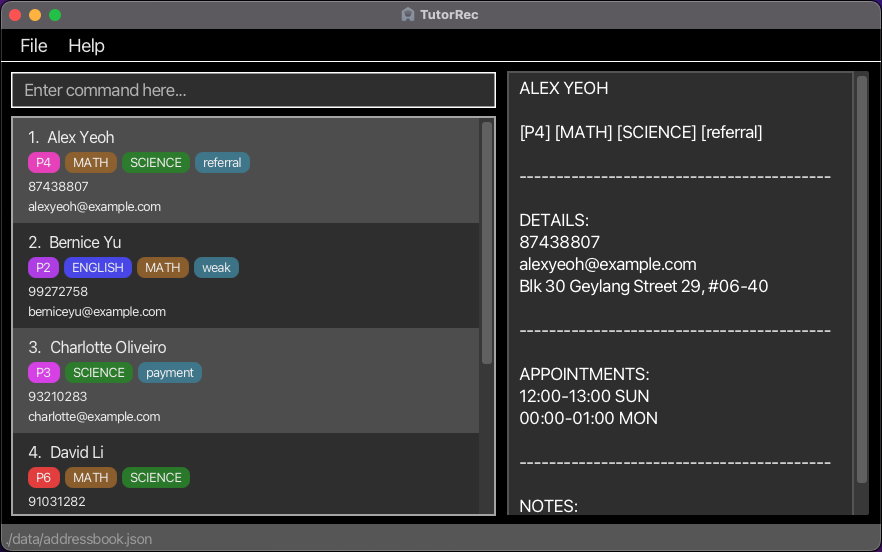
A GUI similar to the one below should appear in a few seconds. Note how the app contains some sample data.
-
Type a command in the command box and press Enter to execute it. e.g. typing
helpand pressing Enter will open the help window.
Some example commands you can try:-
list: Lists all contacts. -
add n/Jun Jie p/98765432 e/jj@example.com a/Clementi Ave 3, block 442, #06-01 nt/Weak at Maths t/referral ap/10:00-12:00 SAT s/MATH l/P1: Adds a contact namedJun Jieto the address book. -
delete 3: Deletes the 3rd contact shown in the current list. -
clear: Deletes all contacts. -
exit: Exits the app.
-
-
Refer to the Features below for details of each command.
Features
 Notes about the command format:
-
Words in
UPPER_CASEare the parameters to be supplied by the user.
e.g. inadd n/NAME,NAMEis a parameter which can be used asadd n/Jun Jie. -
Items in square brackets are optional.
e.gn/NAME [t/TAG]can be used asn/Jun Jie t/or asn/Jun Jie. -
Items with
… after them can be used multiple times including zero times.
e.g.[t/TAG]…can be used ast/Raffles,t/Raffles t/ALeveletc. -
Parameters can be in any order.
e.g. if the command specifiesn/NAME p/PHONE_NUMBER,p/PHONE_NUMBER n/NAMEis also acceptable. -
Extraneous parameters for commands that do not take in parameters (such as
help,list,exitandclear) will be ignored.
e.g. if the command specifieshelp 123, it will be interpreted ashelp. -
Prefixes are adjusted to accept predefined convenient short forms, e.g.,
hp/,addr/,subj/,lvl/.-
You may choose to use short form or long form of prefixes, e.g.,
n/orname/, which are interchangeable. -
Prefixes are also adjusted to accept some predefined slightly incorrect variations, in case of user typos. The full list of accepted typos and short forms are listed below:
-
n/:name/nae/nam/ -
p/:phone/phon/hp/handphone/ -
e/:email/emai/em/ema/ -
a/:address/addr/add/ad/addres/adress/ -
p/:phone/phon/hp/handphone/ -
nt/:note/not/nt/ -
t/:tag/ta/tg/ -
ap/:appointment/appt/appoint/appointmen/ -
s/:subject/subj/sub/subjec/subje/ -
l/:level/lvl/leve/lv/lev/lvel/evel/
-
-
-
TutorRec is currently not resizable
-
If you are using a PDF version of this document, be careful when copying and pasting commands that span multiple lines as space characters surrounding line-breaks may be omitted when copied over to the application.
Formatting fields for a person
A person has the following fields: Name, Phone, Email, Address, Note, Tag, Appointment,
Subject and Level.
Below lists the requirements for each to be a valid field.
-
Name: Must be alphanumeric.-
Jane,Jane1are valid -
Jane@,**&&&are not valid.
-
-
Phone: Must only contain numbers-
999,12341234are valid. -
123Phone,aeiouare not valid.
-
-
Email: Contains two parts, in the formatlocal-part@domain-
local-partmust adhere to the following restrictions:- Contain only alphanumeric characters
- May contain the following special characters
+_.- - May not begin with the above mentioned special characters
-
domainmust adhere to the following restrictions:- contain only letters, numbers, and dashes (
-), note that hyphens cannot be the first or last characters of the domain - the final part of the domain:
- is defined by a
.to separate it from other parts of the domain - is defined by the entire domain if no
.is present - must be at least two characters long
- is defined by a
- ergo, the following are examples of domains which are valid and invalid:
-
cc,test.com,name-separator.govare valid -
a,t*.ab,invalid.sep-are not valid
-
- contain only letters, numbers, and dashes (
- With these restrictions in mind, the following are some valid and invalid emails:
-
alex@example.com,jorge@website.site.com,jack_jane.john@example.comare valid. -
alex@@example.com,jorge@website.site.com-,jack&jane*john@example.comare not valid.
-
-
-
Address: Must not be blank or contain only spaces.- Note that entering an address which is blank or has spaces will instead treat a person as having no address. Valid addresses are still only those which do not violate the above criteria.
-
Note: Must not be blank or contain only spaces- See above.
-
Tag: Should be alphanumeric: [a-zA-Z0-9] -
Subject: Must beMATH,SCIENCE,ENGLISHorMT. -
Level: Must beP1,P2,P3,P4,P5orP6. -
Appointment: Must be in the formatSTART_TIME-END_TIME DAY-
START_TIMEandEND_TIMEare in the 24-hour format ofHH:MM. The time ofSTART_TIMEmust strictly be smaller thanEND_TIME -
DAYmust be one of the following:MON,TUE,WED,THU,FRI,SAT,SUN.- Respectively, these represent Monday, Tuesday, Wednesday, Thursday, Friday, Saturday, and Sunday.
- These are not case-sensitive
-
12:00-13:00 MON,16:59-22:00 sunare valid. -
13:00-11:00 MON,16:0000-19:1234 MON,16:00-17:00 SUNDAYare not valid. - Overlapping appointments between students are strictly not allowed as TutorRec is for tutors who provide 1-to-1 tutoring.
-
Duplicate detection for names and contacts
-
TutorRec does not allow for duplicate contacts, and contacts are differentiated by their unique names.
-
Names are not case-sensitive,
John Doeis the same name asJOhn dOE -
Whitespaces do differentiate names apart, e.g.,
Mary Anneis a different name (and person) fromMaryanne.
-
-
TutorRec’s duplicate detection system ignores case and extra whitespace when comparing names.
- When adding or editing a contact, if a similar name is detected, regardless of case or whitespace differences, users are warned about potential duplicates.
-
In TutorRec, a contact’s phone number and email address do not need to be unique. This flexibility allows you to save the same contact details for parents who have multiple children enrolled with you. As such, it is acceptable for different contacts to share the same phone number and email address.
Viewing help : help
Shows a message explaining how to access the help page.

Format: help
Adding a person: add
Adds a person to the address book.
Format: add n/NAME [p/PHONE_NUMBER] [e/EMAIL] [a/ADDRESS] [nt/NOTE] [ap/APPOINTMENT]… [t/TAG]… [s/SUBJECT]… [l/LEVEL]
 Tip:
A person can have any number of tags, and any number of appointments (including 0).
Tip:
A person can have any number of tags, and any number of appointments (including 0).
Examples:
add n/Jun Jie p/98765432 e/jj@example.com a/Clementi Ave 3, block 442, #06-01 s/MATHadd n/Monica Chng e/mc@example.com a/Dempsey Hill p/81888818 ap/10:00-12:00 FRI l/P6add n/Abel nt/exstudent ap/12:00-15:00 SUN ap/18:00-22:00 TUE
Only the “Name” field is mandatory. If you do not wish to have the other fields to have values, you can add the person in without the corresponding prefix, or leaving the prefix blank.
For example:
add n/Johnadd n/John a/
Both create the same person in the address book (i.e. a person named “John” with no address). The same logic applies to the other fields.
 Note:
New appointments must not overlap with each other and should not overlap with existing appointments.
Note:
New appointments must not overlap with each other and should not overlap with existing appointments.
 Caution:
When it comes to notes and levels, TutorRec will only consider the final prefix in cases where there are multiple prefixes.
Caution:
When it comes to notes and levels, TutorRec will only consider the final prefix in cases where there are multiple prefixes.
For example, with the command: add n/John l/p1 l/p2, TutorRec will only consider l/p2.
Listing all persons : list
Shows a list of all persons in the address book.
Format: list
Viewing a person : view
Displays all information of a person on the side window.
Format: view INDEX
- Displays all information of the person at the specified index. The index refers to the index number shown in the displayed person list. The index must be a positive integer 1, 2, 3, …
Editing a person : edit
Edits an existing person in the address book.
Format: edit INDEX [n/NAME] [p/PHONE_NUMBER] [e/EMAIL] [a/ADDRESS] [nt/NOTE] [ap/APPOINTMENT]… [t/TAG]… [s/SUBJECT]… [l/LEVEL]
- Edits the person at the specified
INDEX. The index refers to the index number shown in the displayed person list. The index must be a positive integer 1, 2, 3, … - At least one of the optional fields must be provided.
- Existing values will be updated to the input values.
- When editing tags, the existing tags of the person will be removed i.e adding of tags is not cumulative.
- You can remove all the person’s tags by typing
t/without specifying any tags after it. Appointments work similarly (i.e. typingap/with no appointments after it clears all appointments) - You can remove fields (except for name) by typing the prefix for the relevant field and leaving it blank.
- Note that while the edit command format specifies that the fields
nt/andl/accepts one argument only, TutorRec v1.4 still accept multiple inputs, however, only the last input will be processed.
Examples:
-
edit 1 p/91234567 e/jj@example.comEdits the phone number and email address of the 1st person to be91234567andjj@example.comrespectively. -
edit 2 n/Monica Chng t/Edits the name of the 2nd person to beMonica Chngand clears all existing tags. -
edit 3 n/Bobby Brown p/Edits the name of the 3rd person to beBobby Brownand removes thephonefield.
Caution:
When it comes to notes and levels, TutorRec will only consider the final prefix in cases where there are multiple prefixes.
For example, with the command: edit 1 l/p1 l/p2, TutorRec will only consider l/p2.
Locating persons by name : find
Finds persons whose names contain any of the given keywords.
Format: find KEYWORD [MORE_KEYWORDS]
- The search is case-insensitive. e.g
hanswill matchHans. - The order of the keywords does not matter. e.g.
Hans Bowill matchBo Hans. - Only the name is searched.
- Only full words will be matched e.g.
Hanwill not matchHans. - Persons matching at least one keyword will be returned (i.e.
ORsearch). e.g.Hans Bowill returnHans Gruber,Bo Yang.
Examples:
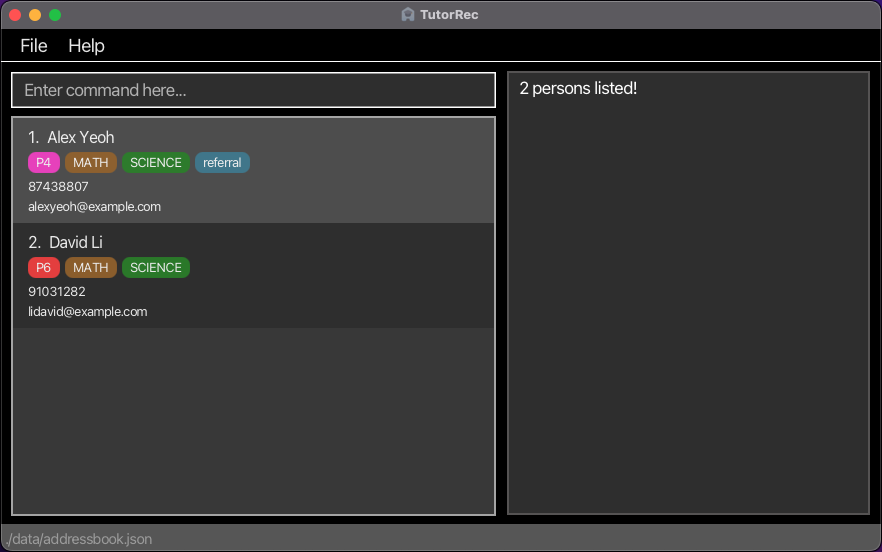
-
find JunreturnsjunandJun Jie. -
find alex davidreturnsAlex Yeoh,David Li.
Deleting a person : delete
Deletes the specified person from the address book.
Format: delete INDEX
- Deletes the person at the specified
INDEX. - The index refers to the index number shown in the displayed person list.
- The index must be a positive integer 1, 2, 3, …
Examples:
-
listfollowed bydelete 2deletes the 2nd person in the address book. -
find Monicafollowed bydelete 1deletes the 1st person in the results of thefindcommand.
Viewing all appointments : appointments
Displays all appointments of persons currently displayed in the list, sorted, along with the persons involved.
Optionally, you may specify a DAY or multiple DAYs to further restrict the appointments displayed.
Format: appointments [DAY]
-
DAYmust be one ofMON,TUE, …,SUN. -
[DAY]may be empty.
Examples:
-
appointmentsreturns all appointments among the displayed persons. -
appointments MONreturns all appointments among the displayed persons on Monday. -
appointments MON TUEreturns all appointments among the displayed persons on Monday and Tuesday.
Clearing all entries : clear
Clears all entries from the address book.
Format: clear
Exiting the program : exit
Exits the program.
Format: exit
Saving the data
TutorRec data is saved in the hard disk automatically after any command that changes the data. There is no need to save manually.
Editing the data file
TutorRec data is saved automatically as a JSON file [JAR file location]/data/addressbook.json. Advanced users are welcome to update data directly by editing that data file.
Caution:
If your changes to the data file makes its format invalid, TutorRec will discard all data and start with an empty data file at the next run. Hence, it is recommended to take a backup of the file before editing it.Furthermore, certain edits can cause TutorRec to behave in unexpected ways (e.g., if a value entered is outside of the acceptable range). Therefore, edit the data file only if you are confident that you can update it correctly.
Archiving data files [coming in v2.0]
Details coming soon …
FAQ
Q: How do I transfer my data to another Computer?
A: Install the app in the other computer and overwrite the data file it creates with the file that contains the data in your previous TutorRec home folder.
Known issues
-
When using multiple screens, if you move the application to a secondary screen, and later switch to using only the primary screen, the GUI will open off-screen. The remedy is to delete the
preferences.jsonfile created by the application before running the application again.
Command summary
| Action | Format, Examples |
|---|---|
| Add |
add n/NAME [p/PHONE_NUMBER] [e/EMAIL] [a/ADDRESS] [nt/NOTE] [ap/APPOINTMENT]… [t/TAG]… [s/SUBJECT]… [l/LEVEL] e.g., add n/Jun Jie p/98765432 e/jj@example.com a/Clementi Ave 3, block 442, #06-01 s/MATH
|
| View | appointments |
| Clear | clear |
| Delete |
delete INDEXe.g., delete 3
|
| Edit |
edit INDEX [n/NAME] [p/PHONE_NUMBER] [e/EMAIL] [a/ADDRESS] [nt/NOTE] [ap/APPOINTMENT]… [t/TAG]… [s/SUBJECT]… [l/LEVEL]e.g., edit 2 n/James Lee e/jameslee@example.com
|
| Find |
find KEYWORD [MORE_KEYWORDS]e.g., find James Jake
|
| List | list |
| View person details | view INDEX |
| Help | help |
| Exit | exit |